본 글은 모두 AWS TechCamp의 내용을 다시 복기하는 차원에서 작성하였습니다.
출처:
AWS TechCamp Online - 100 HoL
AWS TechCamp Online - 100 HoL (EC2, Serverless)
catalog.us-east-1.prod.workshops.aws
1. API Gateway - Lambda - DynamoDB
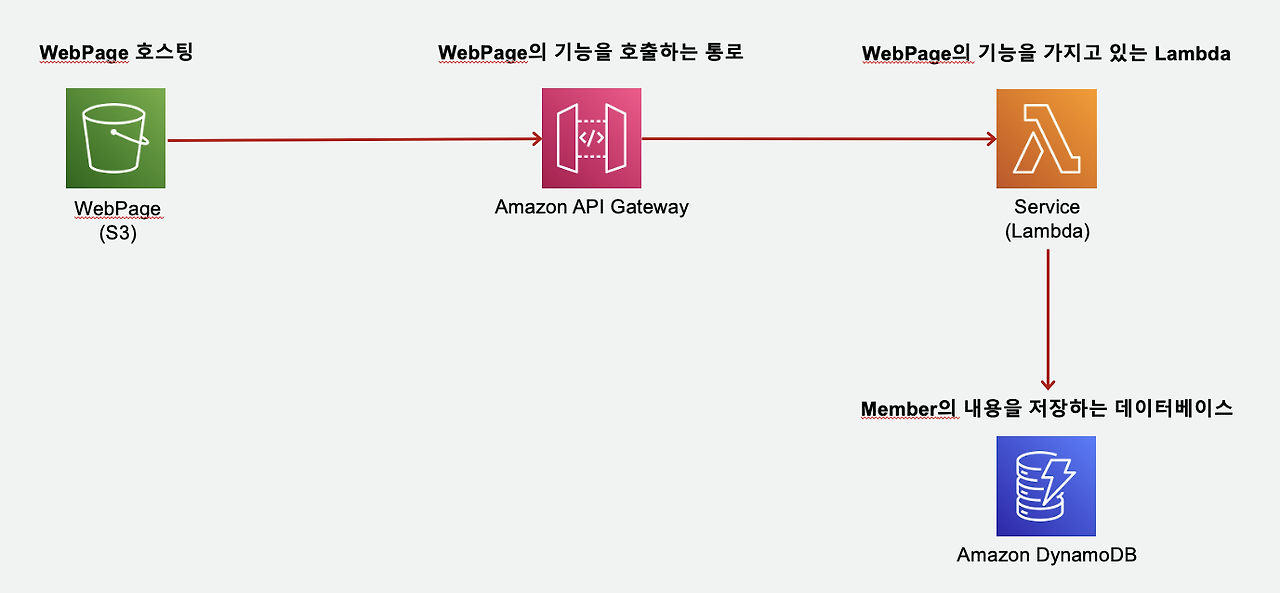
DynamoDB 생성
create table로 table생성한다.
partition키를 필수로 지정한다. sortkey를 추가하여 복합키로 생성할 수 있다.
Lambda 생성
create function 을 생성하는데 python 3.9 runtime으로 만든다.
create role 체크하여 lambda롤을 만들고, permission에서 dynamoDB policy template을 선택하여 dynamoDB 호출권한을 얻는다.
import json
import boto3 # aws sdk
import random
import json

def lambda_handler(event, context):

    member_name = ['Ama','Jone','Zon','Penny','Jessie']          # 이름 배열
    member_status = ['Happy','Sad','Serious','Satisfied','Free'] # 감정 배열

    dynamodb = boto3.resource('dynamodb',endpoint_url='http://dynamodb.ap-northeast-2.amazonaws.com') # dynamoDB endpoint기재
    member_table = dynamodb.Table('hello-member')                                                     # 생성한 dynamoDB 테이블 이름

    name = member_name[random.randint(0,4)]         # 랜덤한 이름값이 나오도록 index를 0~3 사이에서
    status = member_status[random.randint(0, 4)]    # 랜덤한 감정값이 나오도록 index를 0~3 사이에서

    member_table.put_item(                          # hello-member 테이블에 랜덤하게 선택된 이름과 감정을 넣는다.
       Item={
            'name': name,
            'status': status,
        }
    )

    documents = {'name':name,'status':status}       # JSON 포멧으로 document에 담고

    print(documents)                                # 출력

    return {
        'statusCode': 200,                                 # httpStatus Code를 200 OK로
        'headers': {'Access-Control-Allow-Origin': '*'},   # http header
        'body': json.dumps(documents)                      # http body에도 document json return
    }
API Gateway
Rest API를 빌드한다. 적당한 이름으로 생성하고 GET method를 추가한다. integration type은 lambda로 하고 앞에서 생성한 lambda function의 arn 정보를 입력하여 Method 생성완료한다. TEST 탭에서 결과 미리 볼 수 있다.
API 의 루트 ('/') 를 선택한 상태에서 Enable CORS (cross origin resource sharing) 클릭하고 Access-Control-Allow-Method에 Get 설정한다. dev 라는 이름의 stage로 API를 Deploy한다. Invoke URL로 브라우저에서도 결과 확인가능.
S3
bucket을 생성하는데, public access block 을 체크해제하여 접근허용한다.
아래 HTML을 index.html로 저장하고, bucket에 업로드하자.
<html>
<head>
<meta charset="utf-8" name="viewport"
content="width=device-width, height=device-height, minimum-scale=1.0, maximum-scale=1.0, initial-scale=1.0">
<script src="https://ajax.googleapis.com/ajax/libs/jquery/3.3.1/jquery.min.js"></script>
<title>Hello World!</title>
<style>
#title {
font-family: arial;
font-size: 2em;
color: #eb971a;
margin-top: 50px;
text-align: center;
}
button {
background-color: #eb971a;
border: none;
color: white;
border-radius: 5px;
width: 40%;
height: 35px;
font-size: 13pt;
margin-top: 30px;
text-align: center;
}
#sentence {
font-size: 17pt;
margin-top: 30px;
font-weight: bold;
color: #eb971a;
}
</style>
</head>
<body>
<p id="title">Hello World From <b>Lambda</b></p>
<hr id="lambda-line" width="800px" align="center" color="#eb971a;">
<center><button onclick="checkEvent();">Who are you?</button></center>
<center>
<div id="sentence"></div> <!-- 이부분에 inner HTML로 결과가 들어옴 -->
</center>
</body>
<script type="text/javascript">
function checkEvent() {
$.ajax({ //비동기 호출하여 callback에 따라 처리
type: "GET",
url: "URL을입력하세요", // 위에서 복사한 URL을 입력
dataType: 'json',
success: function (data) {
document.getElementById('sentence').innerHTML = data.status + " " + data.name
},
error: function (error) {
alert('ERROR::');
console.log(error)
}
});
}
</script>
</html>
bucket의 properties에서 static website hosting을 edit하여 업로드한 index.html로 웹호스팅하자. index document를 index.hmtl로 지정하면 된다.
이제 접근 허용을 위해 bucket permission탭에서 bucket policy에 아래 권한 입력한뒤 bucket에서 출력되는 url로 접근해본다.
{
  "Version": "2012-10-17",
  "Statement": [
    {
      "Sid": "Stmt1709405011428",
      "Action": [
        "s3:GetObject"
      ],
      "Effect": "Allow",
      "Resource": [
        "arn:aws:s3:::내버킷",
        "arn:aws:s3:::내버킷/*"
      ],
      "Principal": "*"
    }
  ]
}
테스트

who are you 버튼을 누르면 랜덤한 이름과 감정이 버튼 아래에 추가되어 보여진다.
'AWS' 카테고리의 다른 글
| DOP-C02 다이어그램3 (0) | 2025.02.24 |
|---|---|
| DOP-C02 다이어그램 2 (0) | 2025.02.23 |
| DOP-C02 다이어그램1 (0) | 2025.02.23 |
| AWS RDS Aurora MySQL Writer/ReadOnly 인스턴스 분기처리 테스트 (0) | 2022.10.07 |
| AWS EKS 에 CloudWatchAgent 배포 (3) | 2022.09.21 |